> ## Documentation Index
> Fetch the complete documentation index at: https://docs.leadpipe.com/llms.txt
> Use this file to discover all available pages before exploring further.
# Set up webhooks
> Stream visitor identifications to your own systems
## Overview
Webhooks let you send Leadpipe events to your own endpoints when visitors are identified or updated.
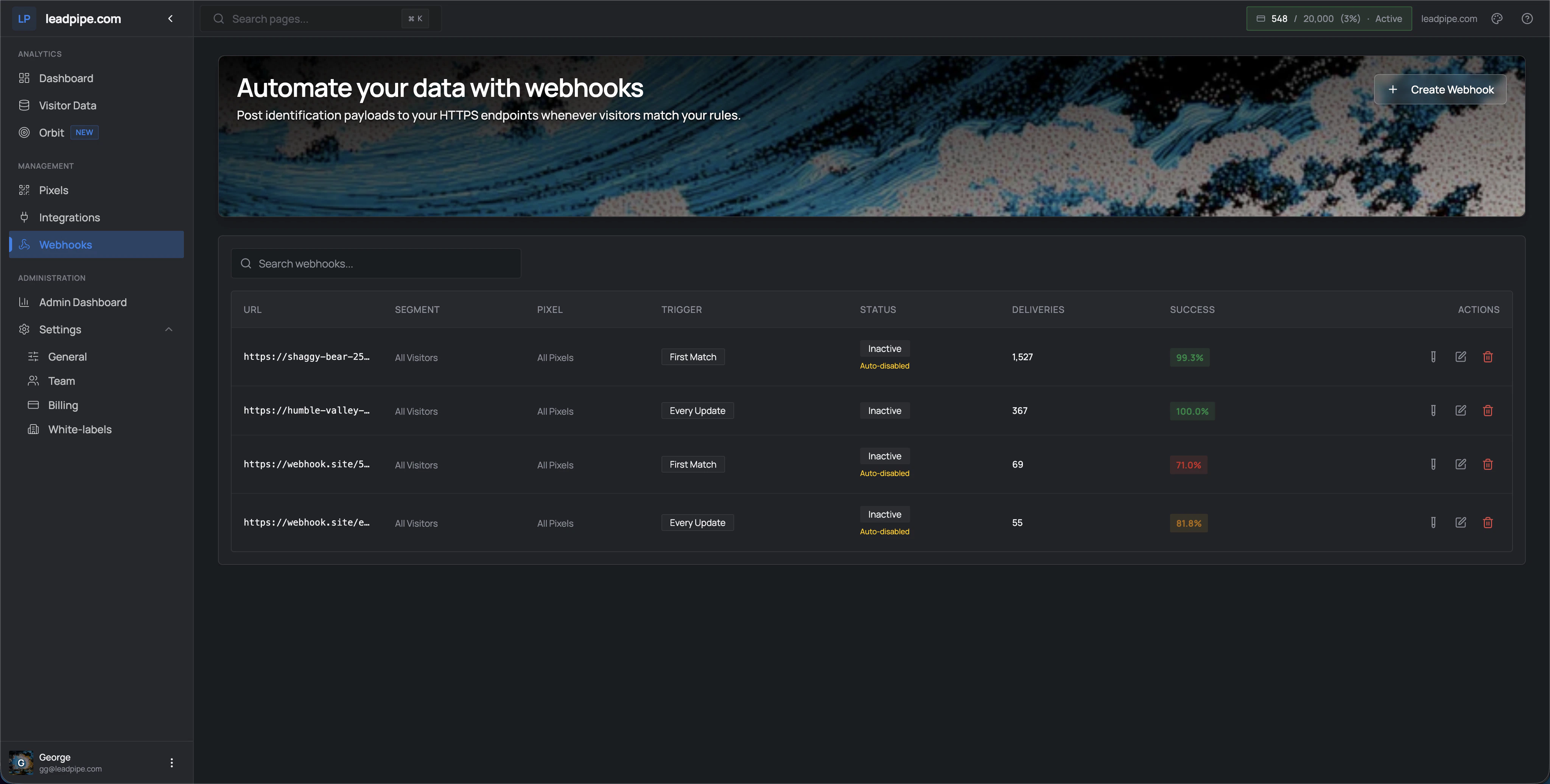 Each webhook can be configured around:
* A destination URL
* A segment
* A pixel
* A trigger
* Delivery status and success rate
The table also shows delivery volume, success rate, and whether a webhook has been marked `Inactive` or `Auto-disabled`.
## Trigger types
Use this when you want the first qualifying identification only. This is the lighter option when you do not want the same visitor sent repeatedly.
Use this when downstream systems should receive repeat updates as visitor data changes or as new sessions happen.
## Recommended workflow
Limit the first webhook to a clear slice of traffic so you can validate the payloads and delivery behavior.
Use **First Match** for lighter workflows and **Every Update** when downstream state needs to stay current.
Review deliveries, success rate, and inactive status before scaling the webhook to more traffic.
## Testing and delivery history
Once the webhook is configured, you can send a test payload and review delivery history to confirm the endpoint is receiving data correctly.
In the demo flow, repeated consecutive failures can cause a webhook to deactivate automatically.
## When to use webhooks instead of integrations
Use webhooks when:
* You need a custom destination
* You want full control over downstream processing
* An existing integration does not fit your workflow
## How to read webhook status
| Field | What it tells you |
| ------------ | ------------------------------------------------------------------ |
| `Trigger` | Whether the webhook sends on `First Match` or `Every Update` |
| `Status` | Whether the webhook is active, inactive, or has been auto-disabled |
| `Deliveries` | How many payload attempts have been made |
| `Success` | The observed success rate for that webhook |
Each webhook can be configured around:
* A destination URL
* A segment
* A pixel
* A trigger
* Delivery status and success rate
The table also shows delivery volume, success rate, and whether a webhook has been marked `Inactive` or `Auto-disabled`.
## Trigger types
Use this when you want the first qualifying identification only. This is the lighter option when you do not want the same visitor sent repeatedly.
Use this when downstream systems should receive repeat updates as visitor data changes or as new sessions happen.
## Recommended workflow
Limit the first webhook to a clear slice of traffic so you can validate the payloads and delivery behavior.
Use **First Match** for lighter workflows and **Every Update** when downstream state needs to stay current.
Review deliveries, success rate, and inactive status before scaling the webhook to more traffic.
## Testing and delivery history
Once the webhook is configured, you can send a test payload and review delivery history to confirm the endpoint is receiving data correctly.
In the demo flow, repeated consecutive failures can cause a webhook to deactivate automatically.
## When to use webhooks instead of integrations
Use webhooks when:
* You need a custom destination
* You want full control over downstream processing
* An existing integration does not fit your workflow
## How to read webhook status
| Field | What it tells you |
| ------------ | ------------------------------------------------------------------ |
| `Trigger` | Whether the webhook sends on `First Match` or `Every Update` |
| `Status` | Whether the webhook is active, inactive, or has been auto-disabled |
| `Deliveries` | How many payload attempts have been made |
| `Success` | The observed success rate for that webhook |