> ## Documentation Index
> Fetch the complete documentation index at: https://docs.leadpipe.com/llms.txt
> Use this file to discover all available pages before exploring further.
# Manage your team and account
> Control access, notifications, billing, and account-level settings
## Overview
Leadpipe account management lives under **Settings** and related admin areas.
This is where you manage:
* Your profile and organization details
* Team access
* Billing
* API keys
* Notifications
* Security controls
* Activity history
## Notifications
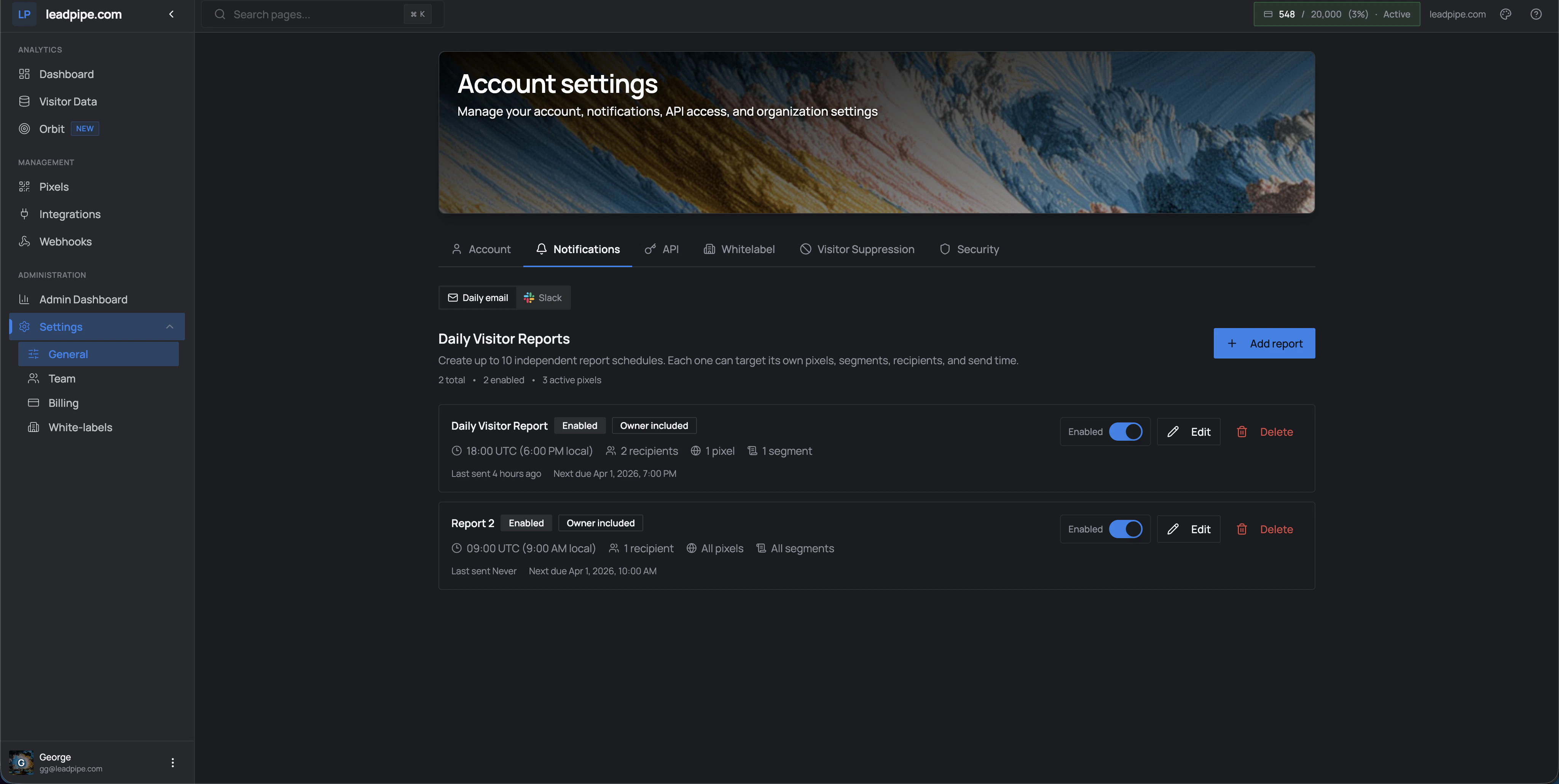 The **Notifications** area currently includes at least two notification modes in the UI:
* `Daily email`
* `Slack`
### Daily visitor reports
From the current UI, daily reports let you:
* create multiple report schedules
* enable or disable each schedule without deleting it
* choose a delivery time in UTC
* scope the report to selected pixels
* scope the report to selected segments
* include or exclude the organization owner
* add extra email recipients
You can create multiple notification schedules and name each one based on the workflow it supports.
The **Notifications** area currently includes at least two notification modes in the UI:
* `Daily email`
* `Slack`
### Daily visitor reports
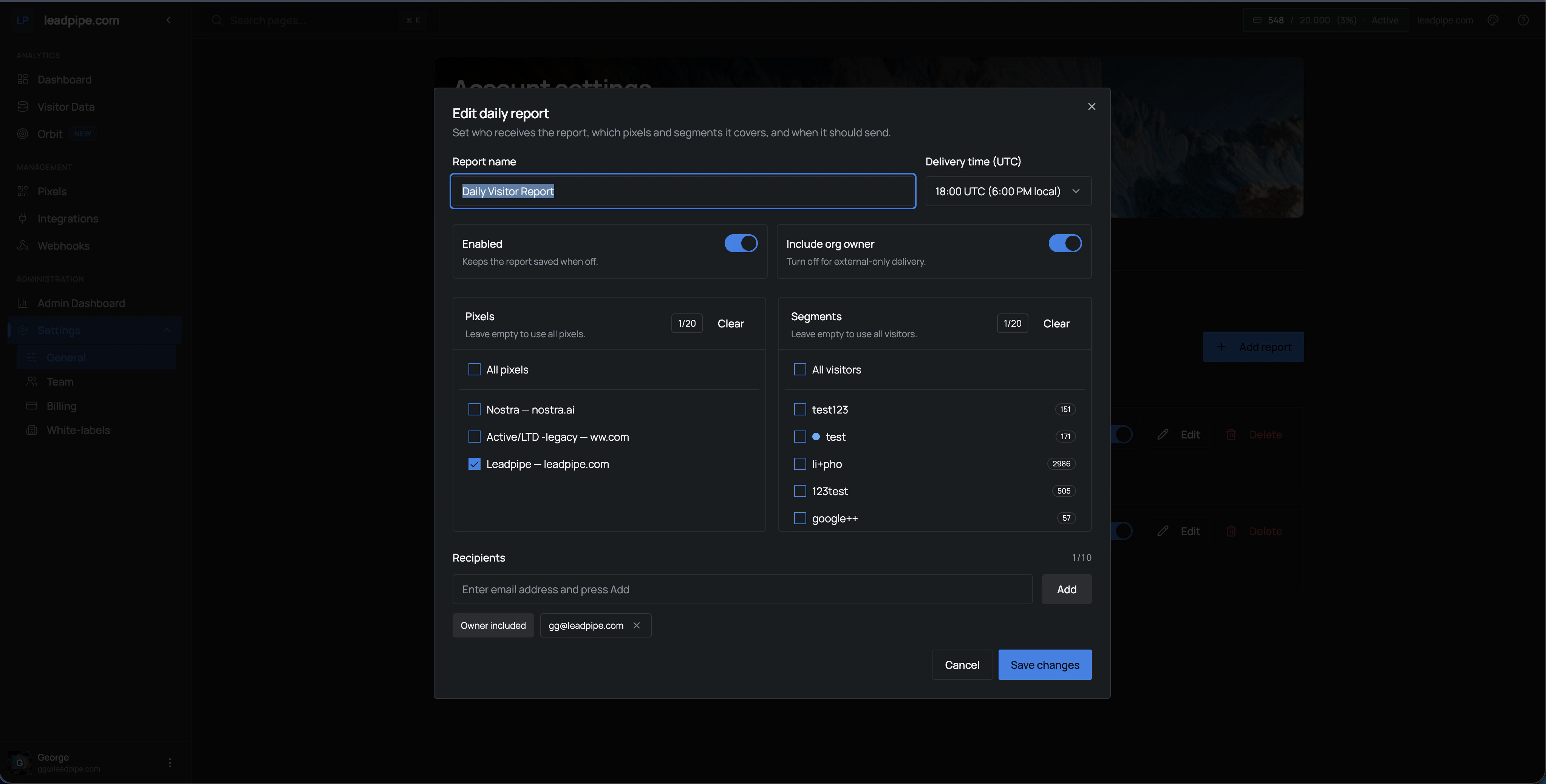
From the current UI, daily reports let you:
* create multiple report schedules
* enable or disable each schedule without deleting it
* choose a delivery time in UTC
* scope the report to selected pixels
* scope the report to selected segments
* include or exclude the organization owner
* add extra email recipients
You can create multiple notification schedules and name each one based on the workflow it supports.
 ### Slack notifications
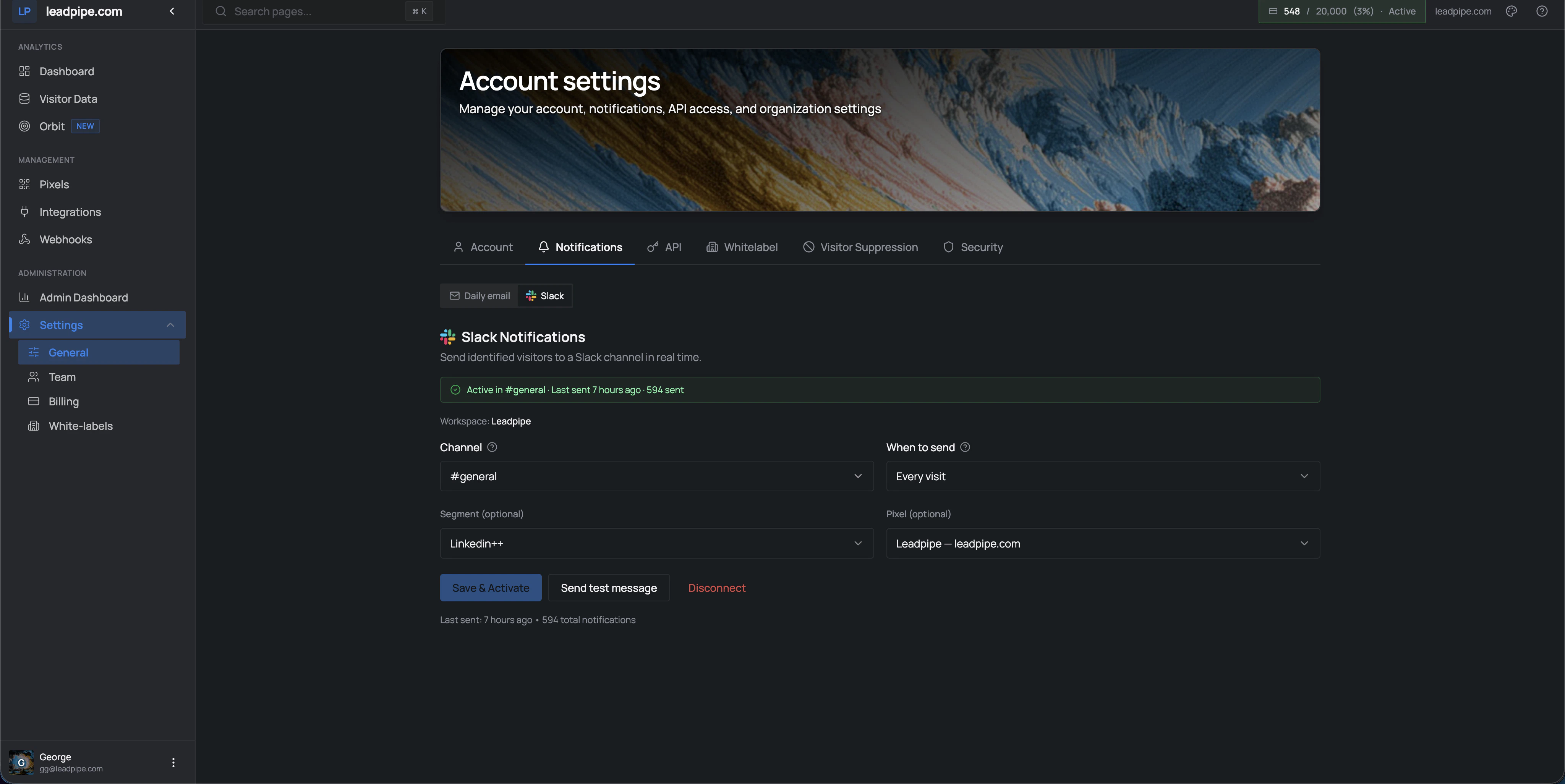 Slack notifications let you choose:
* the connected workspace
* the destination channel
* when to send
* an optional segment
* an optional pixel
The screen also supports `Save & Activate`, `Send test message`, and `Disconnect`.
## API key
Slack notifications let you choose:
* the connected workspace
* the destination channel
* when to send
* an optional segment
* an optional pixel
The screen also supports `Save & Activate`, `Send test message`, and `Disconnect`.
## API key
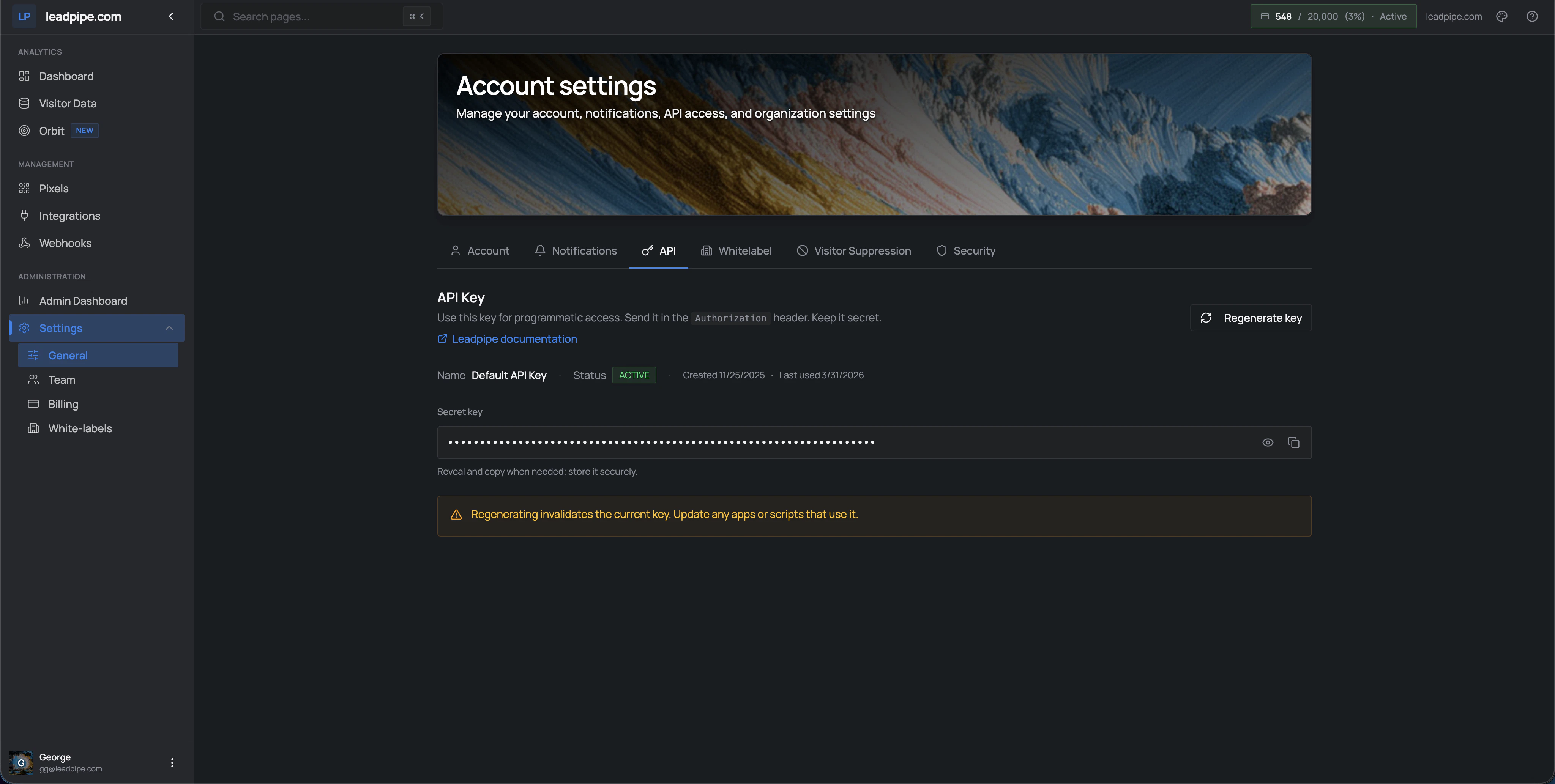 The API key screen shows the key name, status, creation date, and last-used date. It also lets you reveal, copy, and regenerate the key.
Regenerating the key invalidates the current one, so any scripts or downstream systems using it need to be updated immediately.
For exact auth requirements, use the API docs rather than relying on the settings page alone.
## Visitor suppression
The API key screen shows the key name, status, creation date, and last-used date. It also lets you reveal, copy, and regenerate the key.
Regenerating the key invalidates the current one, so any scripts or downstream systems using it need to be updated immediately.
For exact auth requirements, use the API docs rather than relying on the settings page alone.
## Visitor suppression
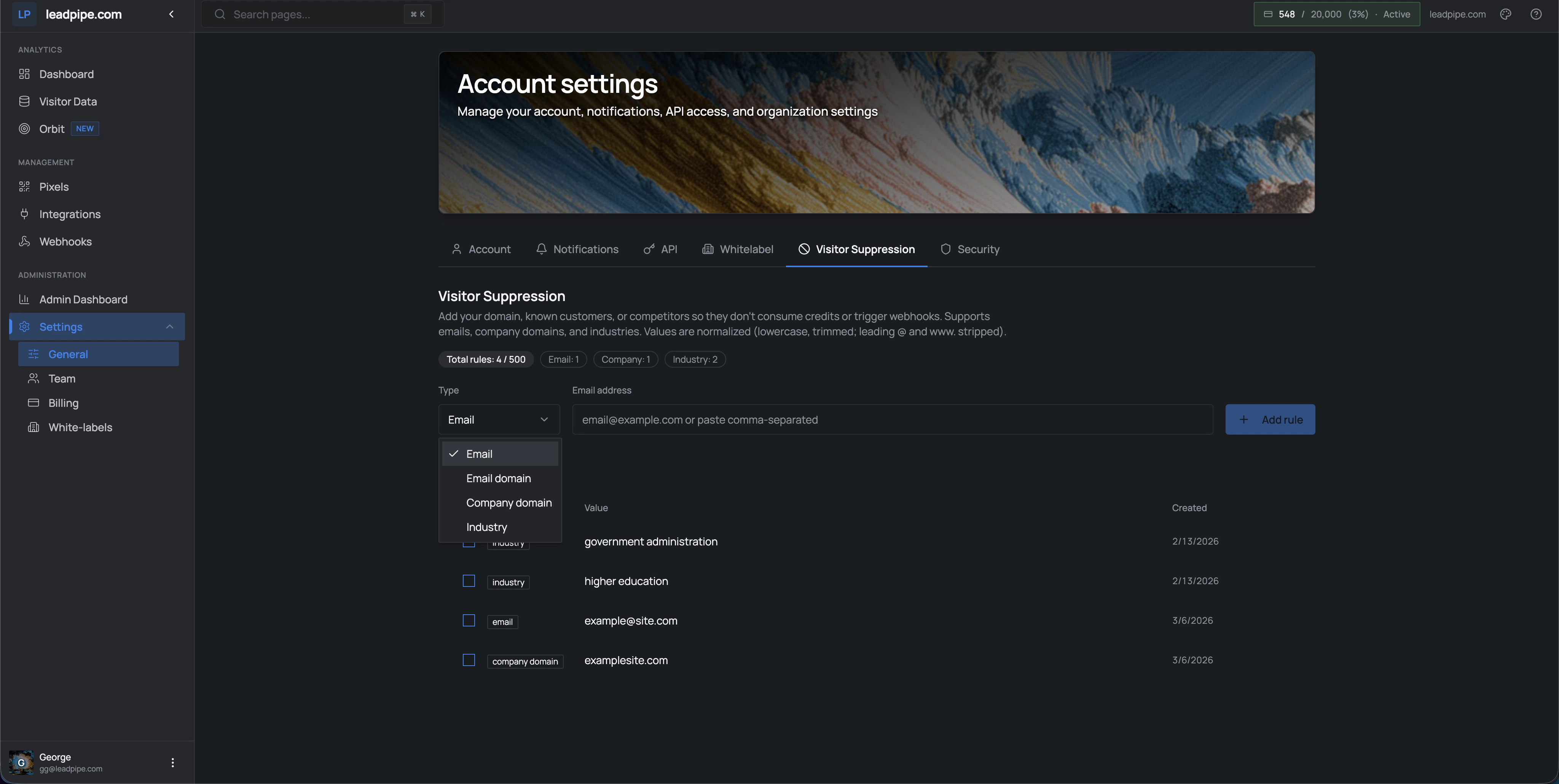 The current suppression UI supports these rule types:
* `Email`
* `Email domain`
* `Company domain`
* `Industry`
The screen also indicates that suppression values are normalized before matching, including lowercasing and trimming, and stripping leading `@` and `www.` where relevant.
Use suppression when you want to keep known customers, competitors, internal traffic, or bad-fit segments from consuming credits or triggering downstream workflows.
Suppressed traffic can still be identified, but it does not need to count against the workflow the same way unsuppressed traffic does.
## Security
The current suppression UI supports these rule types:
* `Email`
* `Email domain`
* `Company domain`
* `Industry`
The screen also indicates that suppression values are normalized before matching, including lowercasing and trimming, and stripping leading `@` and `www.` where relevant.
Use suppression when you want to keep known customers, competitors, internal traffic, or bad-fit segments from consuming credits or triggering downstream workflows.
Suppressed traffic can still be identified, but it does not need to count against the workflow the same way unsuppressed traffic does.
## Security
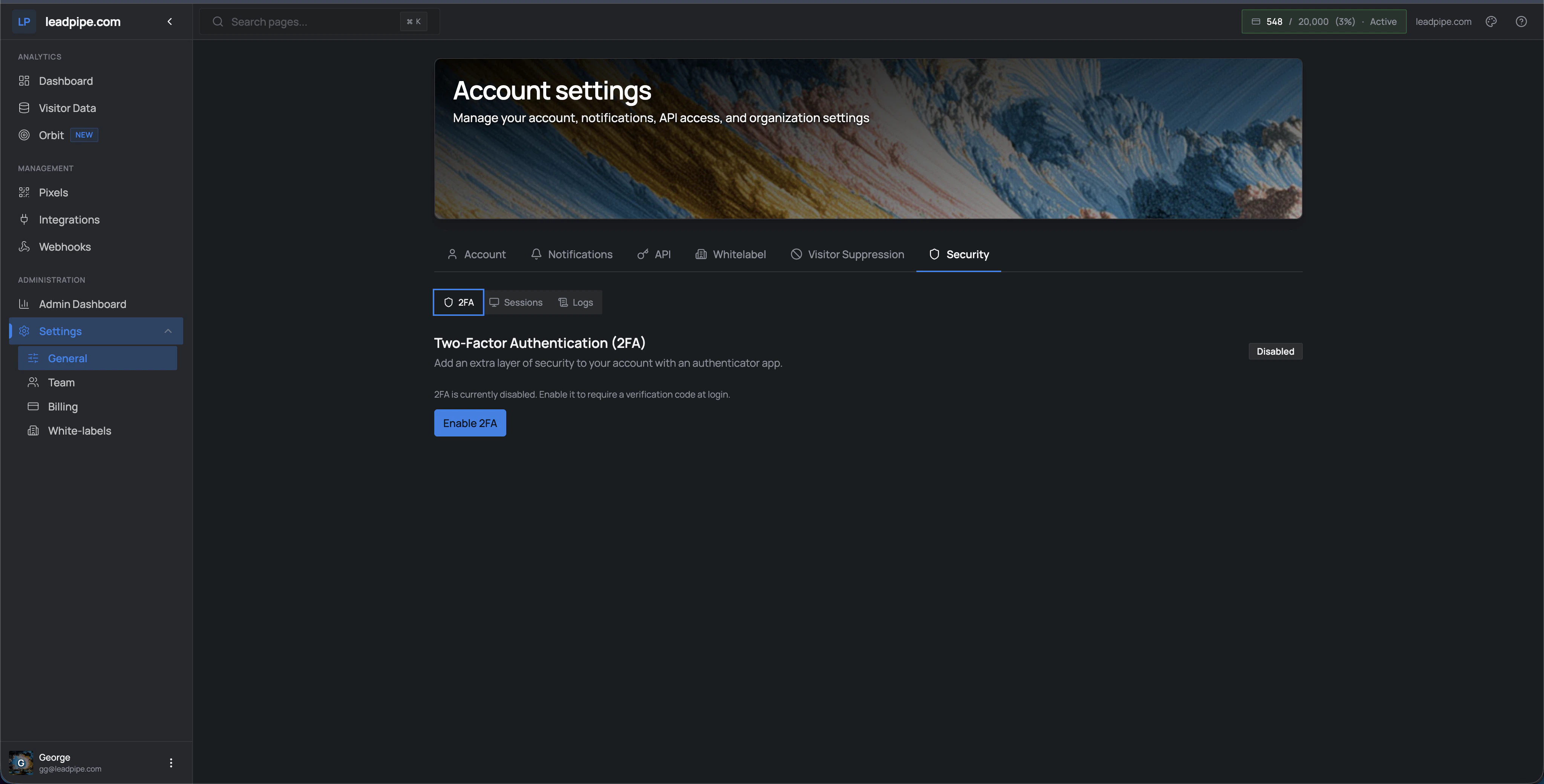 The **Security** area currently includes tabs for:
* `2FA`
* `Sessions`
* `Logs`
Two-factor authentication can be enabled from this page. The security area is also where teams review active sessions and session history.
## Team
The **Security** area currently includes tabs for:
* `2FA`
* `Sessions`
* `Logs`
Two-factor authentication can be enabled from this page. The security area is also where teams review active sessions and session history.
## Team
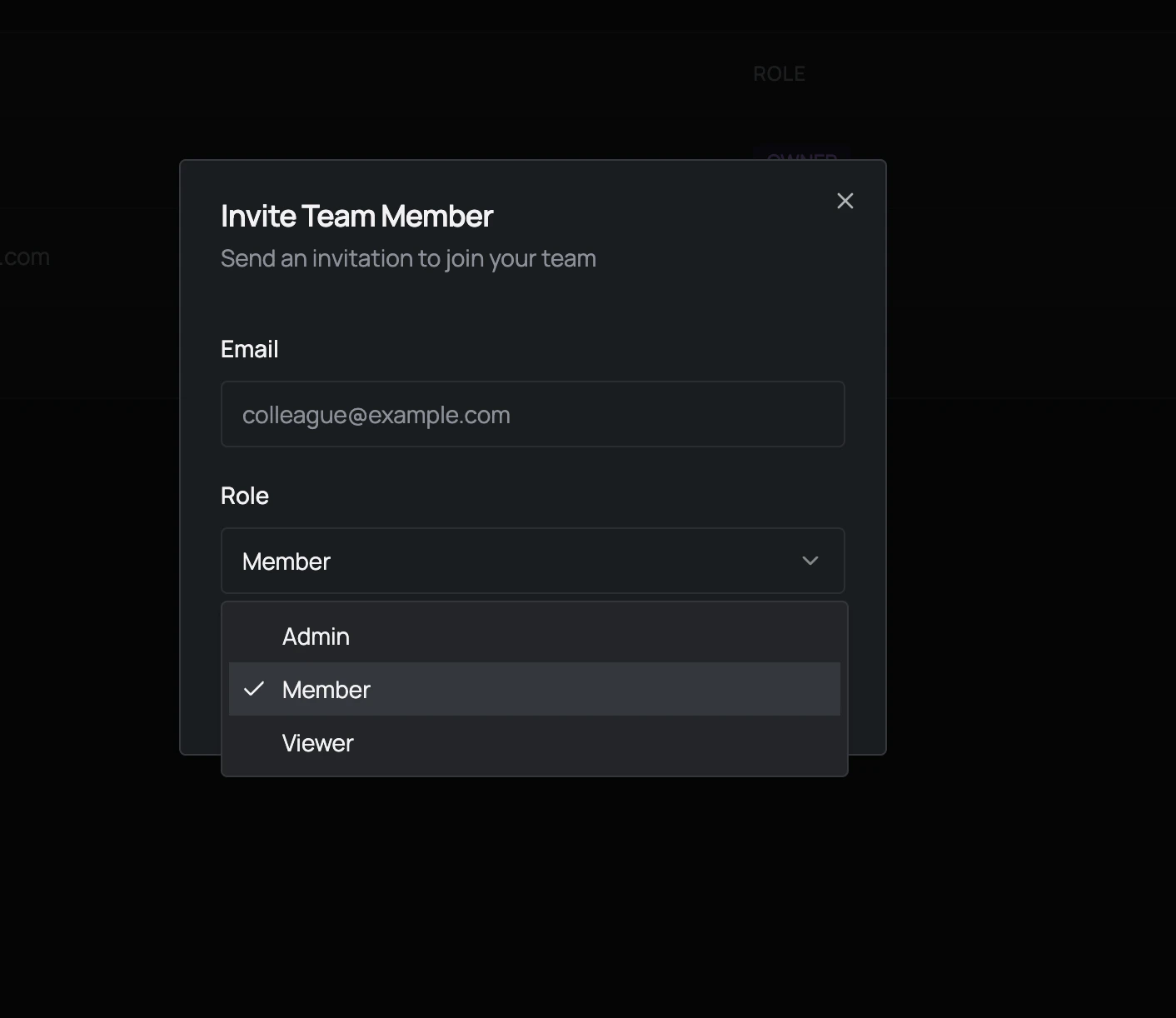
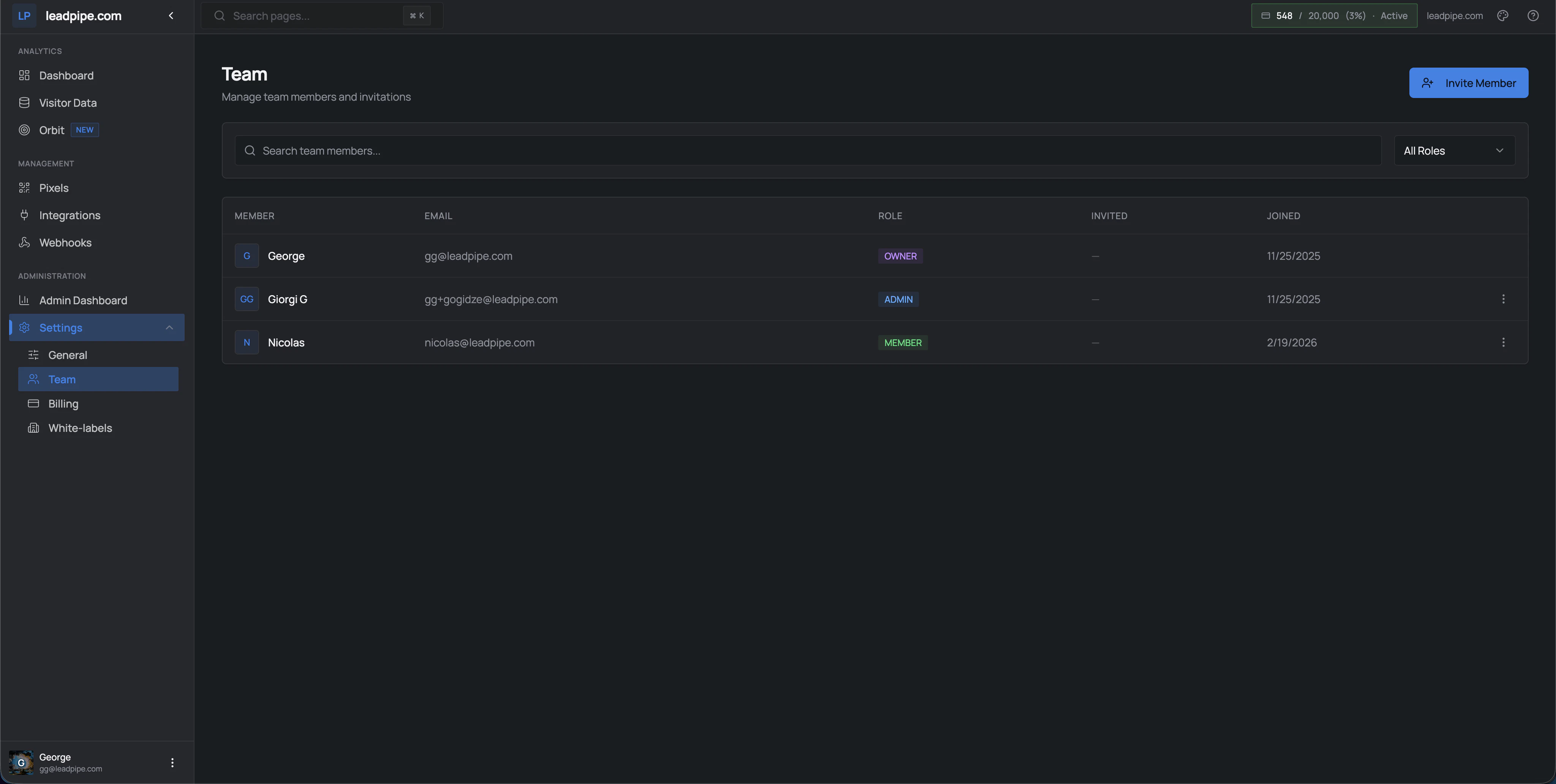 The team screen lets you search members, filter by role, and invite new users.
From the current UI:
* existing members can appear as `Owner`, `Admin`, or `Member`
* the invite modal supports `Admin`, `Member`, and `Viewer`
The demo flow describes team access as supporting unlimited team members.
The team screen lets you search members, filter by role, and invite new users.
From the current UI:
* existing members can appear as `Owner`, `Admin`, or `Member`
* the invite modal supports `Admin`, `Member`, and `Viewer`
The demo flow describes team access as supporting unlimited team members.
 ## Billing
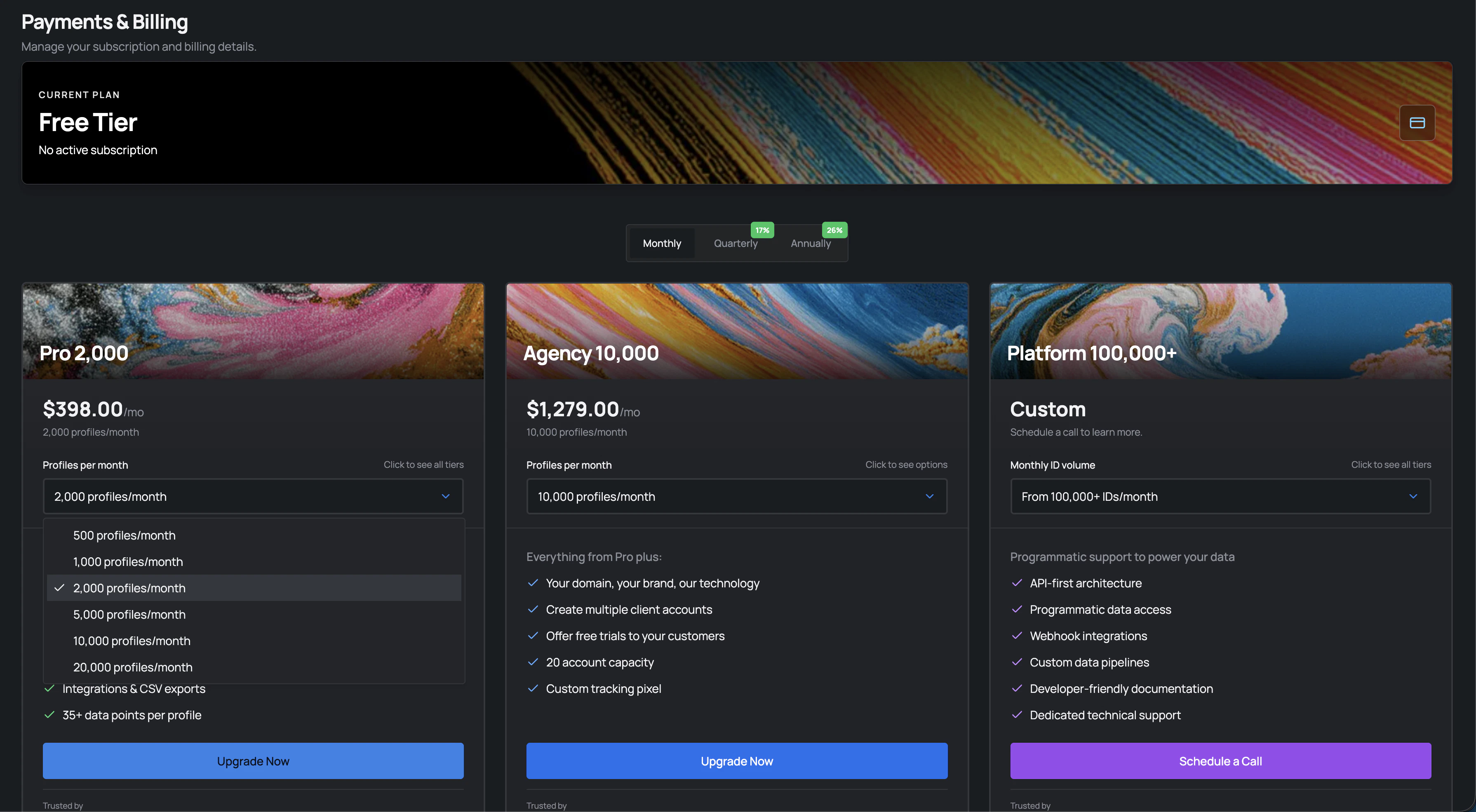 The billing area shows the current plan, billing interval options, and upgrade paths available in the app.
Because plans and pricing can change, the in-app billing screen should be treated as the current source of truth.
## Good admin habits
* Limit access to the people who need it
* Review active sessions regularly
* Protect the API key and rotate it deliberately
* Use activity history when you need to trace what changed and when
The billing area shows the current plan, billing interval options, and upgrade paths available in the app.
Because plans and pricing can change, the in-app billing screen should be treated as the current source of truth.
## Good admin habits
* Limit access to the people who need it
* Review active sessions regularly
* Protect the API key and rotate it deliberately
* Use activity history when you need to trace what changed and when